v2ray 搭建教程
v2ray 搭建教程一、网络代理工具介绍(C/S 架构)服务端:客户端:二、v2ray 服务端部署准备1. 环境准备2. 部署思路三、v2ray 服务端部署详细步骤1. 登陆目标 vps 主机2. 执行一键部署脚本3. 启动控制面板4. 打开浏览器配置四、客户端连接(以 Windows 为例)1. 下载安装客户端文件2. 在 Windows 中解压得到 v2rayN.exe 二进制文件3. 打开,并添加节点信息4. 更改其作为 PAC 模式运行五、浏览器访问(以 Chrome 为例)1. 配置 Windows 使用 PAC 模式六、测试 & 验证
一、网络代理工具介绍(C/S 架构)
服务端:
V2Ray 是一个开源的网络代理工具,旨在提供更加灵活、快速和安全的网络访问解决方案。它主要用于绕过网络审查、保护用户的隐私以及提高网络的安全性。V2Ray 提供了多种协议支持,允许用户根据需要选择最合适的协议来实现科学上网或加密通信。
客户端:
V2RayN 是 V2Ray 在 Windows 系统上的客户端程序,提供图形化界面(GUI),方便用户配置和管理 V2Ray 服务。
下载地址:
V2RayU 是 V2Ray 在 macOS 平台上的客户端,提供类似 V2RayN 的图形化界面,便于 macOS 用户使用 V2Ray。
下载地址:
V2RayNG 是 V2Ray 在 Android 平台上的客户端,提供了简洁的用户界面和多种协议支持,适合 Android 用户使用。
下载地址:
Google Play:V2RayNG - Google Play
GitHub:V2RayNG GitHub
Shadowrocket 是 iOS 平台上非常受欢迎的网络代理工具,专门为 iPhone 和 iPad 用户提供了灵活强大的代理功能。它支持多种协议,包括 V2Ray、Shadowsocks、HTTP、Socks5 等,可以满足用户在 iOS 上的科学上网需求。
下载方式:
Shadowrocket 是一款收费的应用,可以通过 App Store 下载:
App Store:Shadowrocket - App Store
二、v2ray 服务端部署准备
1. 环境准备
国外 VPS 一台
Xshell / iterm 等 ssh 终端工具
2. 部署思路
登陆远端 VPS 服务器
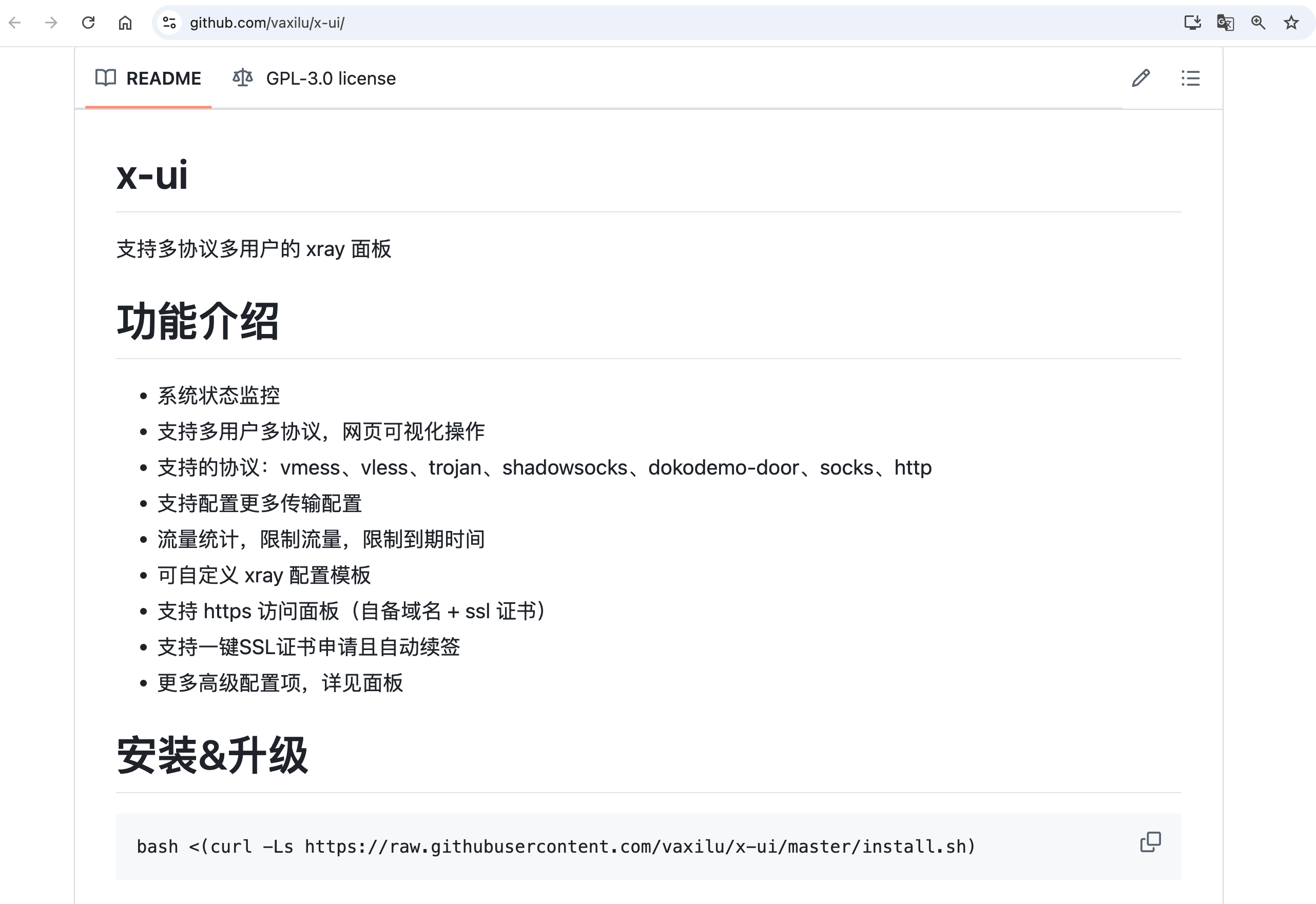
安装 x-ui 支持多协议多用户的 xray 面板
对客户端进行调试
三、v2ray 服务端部署详细步骤
1. 登陆目标 vps 主机
2. 执行一键部署脚本
bash <(curl -Ls https://raw.githubusercontent.com/vaxilu/x-ui/master/install.sh)
x# bash <(curl -Ls https://raw.githubusercontent.com/vaxilu/x-ui/master/install.sh)架构: amd64开始安装Updating Subscription Management repositories.Unable to read consumer identity
This system is not registered with an entitlement server. You can use "rhc" or "subscription-manager" to register.
Last metadata expiration check: 0:24:05 ago on Wed 25 Dec 2024 02:24:05 AM EST.Package wget-1.21.1-8.el9_4.x86_64 is already installed.Package curl-7.76.1-31.el9.x86_64 is already installed.Package tar-2:1.34-7.el9.x86_64 is already installed.Dependencies resolved.Nothing to do.Complete!检测到 x-ui 最新版本:0.3.2,开始安装WARNING: timestamping does nothing in combination with -O. See the manualfor details.
--2024-12-25 02:48:10-- https://github.com/vaxilu/x-ui/releases/download/0.3.2/x-ui-linux-amd64.tar.gzResolving github.com (github.com)... 140.82.114.4Connecting to github.com (github.com)|140.82.114.4|:443... connected.HTTP request sent, awaiting response... 302 FoundLocation: https://objects.githubusercontent.com/github-production-release-asset-2e65be/368390355/e19f3b66-cba1-4a80-9a63-b38f1521114f?X-Amz-Algorithm=AWS4-HMAC-SHA256&X-Amz-Credential=releaseassetproduction%2F20241225%2Fus-east-1%2Fs3%2Faws4_request&X-Amz-Date=20241225T074722Z&X-Amz-Expires=300&X-Amz-Signature=a721d3591d70c8a2d56ed1c0b49b82475036f88e6a87624b173adcb3f4f1fe3a&X-Amz-SignedHeaders=host&response-content-disposition=attachment%3B%20filename%3Dx-ui-linux-amd64.tar.gz&response-content-type=application%2Foctet-stream [following]--2024-12-25 02:48:10-- https://objects.githubusercontent.com/github-production-release-asset-2e65be/368390355/e19f3b66-cba1-4a80-9a63-b38f1521114f?X-Amz-Algorithm=AWS4-HMAC-SHA256&X-Amz-Credential=releaseassetproduction%2F20241225%2Fus-east-1%2Fs3%2Faws4_request&X-Amz-Date=20241225T074722Z&X-Amz-Expires=300&X-Amz-Signature=a721d3591d70c8a2d56ed1c0b49b82475036f88e6a87624b173adcb3f4f1fe3a&X-Amz-SignedHeaders=host&response-content-disposition=attachment%3B%20filename%3Dx-ui-linux-amd64.tar.gz&response-content-type=application%2Foctet-streamResolving objects.githubusercontent.com (objects.githubusercontent.com)... 185.199.109.133, 185.199.110.133, 185.199.111.133, ...Connecting to objects.githubusercontent.com (objects.githubusercontent.com)|185.199.109.133|:443... connected.HTTP request sent, awaiting response... 200 OKLength: 16509803 (16M) [application/octet-stream]Saving to: ‘/usr/local/x-ui-linux-amd64.tar.gz’
/usr/local/x-ui-linux-amd64.tar.gz 100%[========================================================================>] 15.74M 58.0MB/s in 0.3s
2024-12-25 02:48:11 (58.0 MB/s) - ‘/usr/local/x-ui-linux-amd64.tar.gz’ saved [16509803/16509803]
x-ui/x-ui/x-uix-ui/bin/x-ui/x-ui.shx-ui/x-ui.servicex-ui/bin/geoip.datx-ui/bin/geosite.datx-ui/bin/xray-linux-amd64--2024-12-25 02:48:11-- https://raw.githubusercontent.com/vaxilu/x-ui/main/x-ui.shResolving raw.githubusercontent.com (raw.githubusercontent.com)... 2606:50c0:8001::154, 2606:50c0:8002::154, 2606:50c0:8003::154, ...Connecting to raw.githubusercontent.com (raw.githubusercontent.com)|2606:50c0:8001::154|:443... failed: Network is unreachable.Connecting to raw.githubusercontent.com (raw.githubusercontent.com)|2606:50c0:8002::154|:443... failed: Network is unreachable.Connecting to raw.githubusercontent.com (raw.githubusercontent.com)|2606:50c0:8003::154|:443... failed: Network is unreachable.Connecting to raw.githubusercontent.com (raw.githubusercontent.com)|2606:50c0:8000::154|:443... failed: Network is unreachable.Connecting to raw.githubusercontent.com (raw.githubusercontent.com)|185.199.110.133|:443... connected.HTTP request sent, awaiting response... 200 OKLength: 15922 (16K) [text/plain]Saving to: ‘/usr/bin/x-ui’
/usr/bin/x-ui 100%[========================================================================>] 15.55K --.-KB/s in 0.002s
2024-12-25 02:48:12 (8.50 MB/s) - ‘/usr/bin/x-ui’ saved [15922/15922]
出于安全考虑,安装/更新完成后需要强制修改端口与账户密码确认是否继续?[y/n]:y请设置您的账户名:admin您的账户名将设定为:admin请设置您的账户密码:admin您的账户密码将设定为:admin请设置面板访问端口:9090您的面板访问端口将设定为:9090确认设定,设定中set username and password success账户密码设定完成set port 9090 success面板端口设定完成Created symlink /etc/systemd/system/multi-user.target.wants/x-ui.service → /etc/systemd/system/x-ui.service.x-ui v0.3.2 安装完成,面板已启动,
x-ui 管理脚本使用方法:----------------------------------------------x-ui - 显示管理菜单 (功能更多)x-ui start - 启动 x-ui 面板x-ui stop - 停止 x-ui 面板x-ui restart - 重启 x-ui 面板x-ui status - 查看 x-ui 状态x-ui enable - 设置 x-ui 开机自启x-ui disable - 取消 x-ui 开机自启x-ui log - 查看 x-ui 日志x-ui v2-ui - 迁移本机器的 v2-ui 账号数据至 x-uix-ui update - 更新 x-ui 面板x-ui install - 安装 x-ui 面板x-ui uninstall - 卸载 x-ui 面板----------------------------------------------注意: 上述输出内容包含 自定义部分修改 和 脚本使用方法。以及防火墙 firewall-cmd 的流量放行,以上述为例需开放 9090 端口。
3. 启动控制面板
xxxxxxxxxx# x-ui start
[INF] 面板已运行,无需再次启动,如需重启请选择重启# x-ui restart[INF] x-ui 与 xray 重启成功#
4. 打开浏览器配置
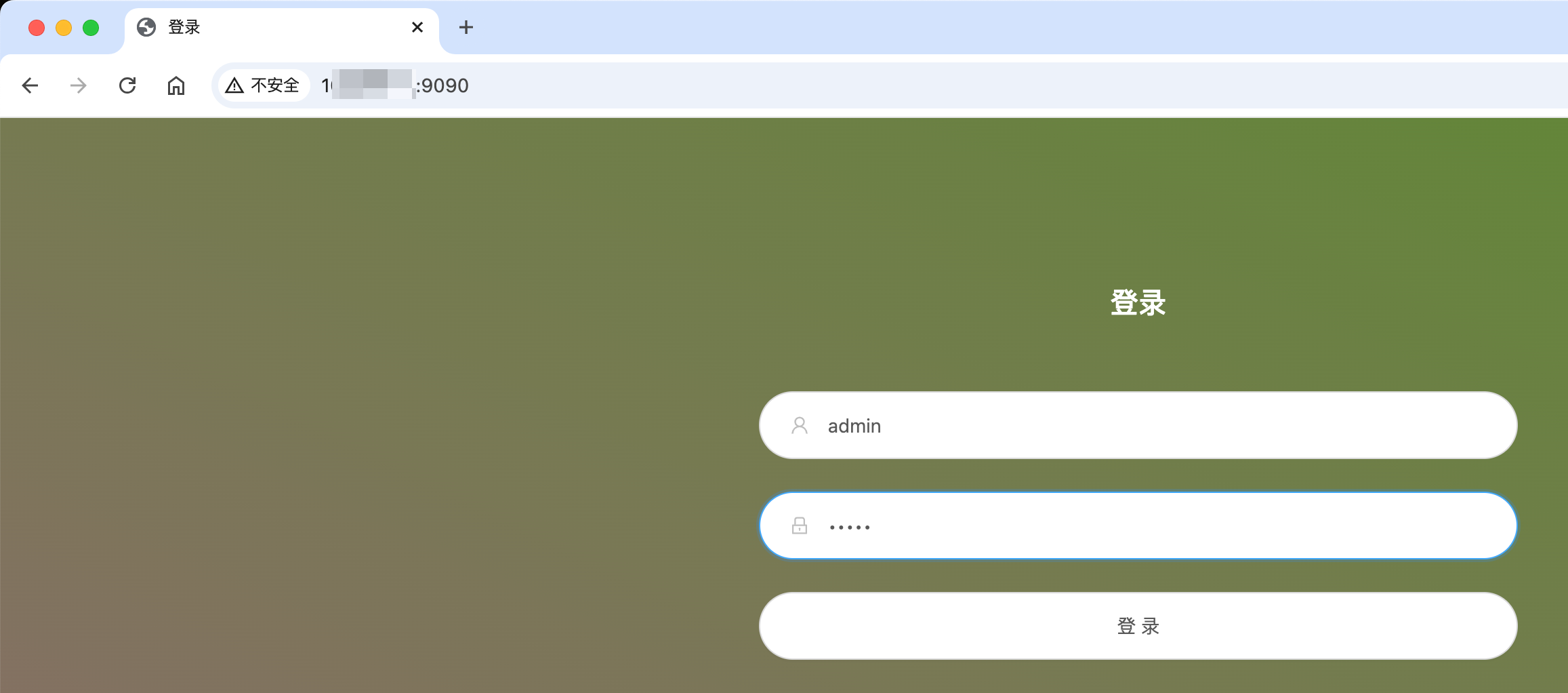
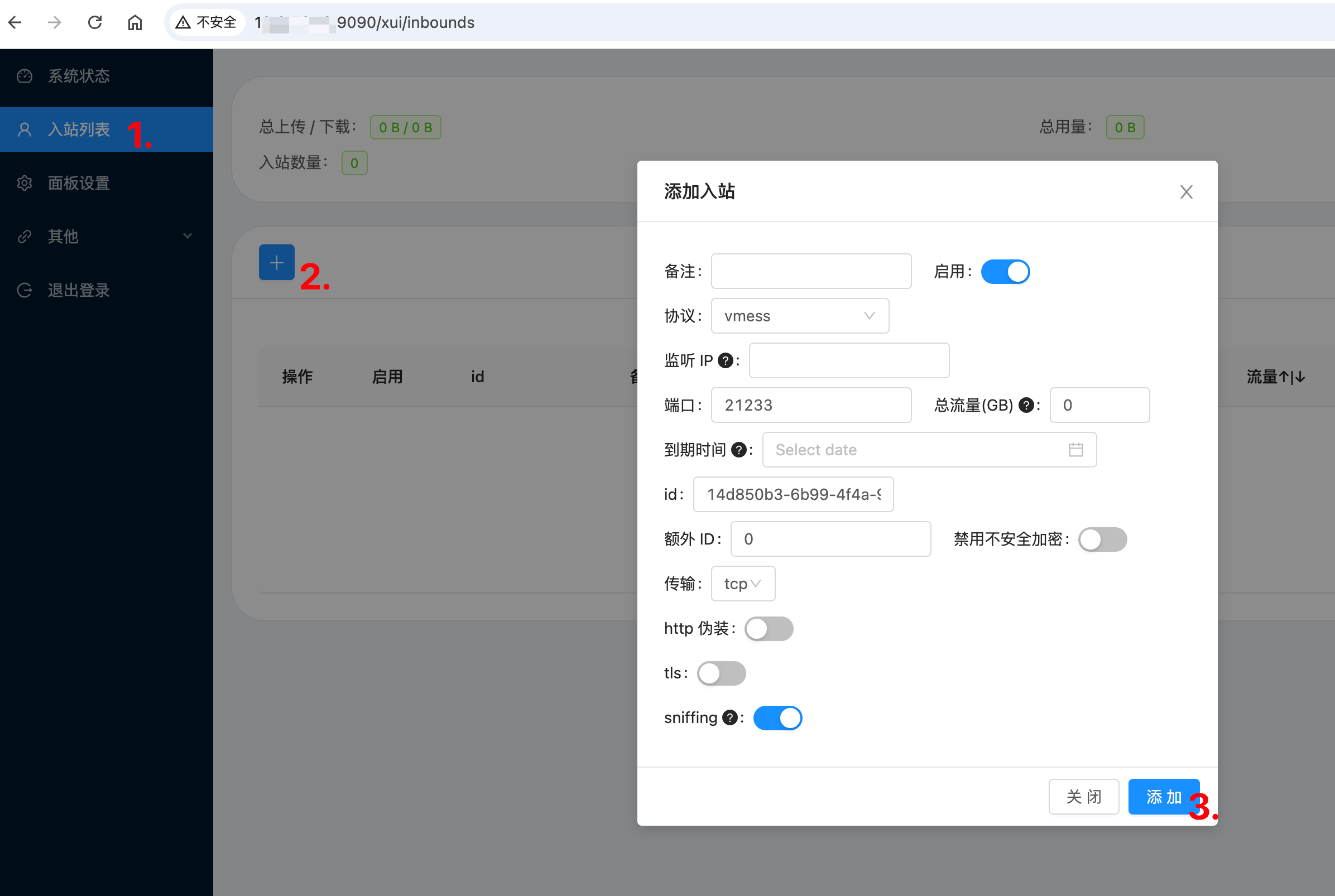
打开入站配置
点击 “+” 添加节点信息
点击完成结束添加
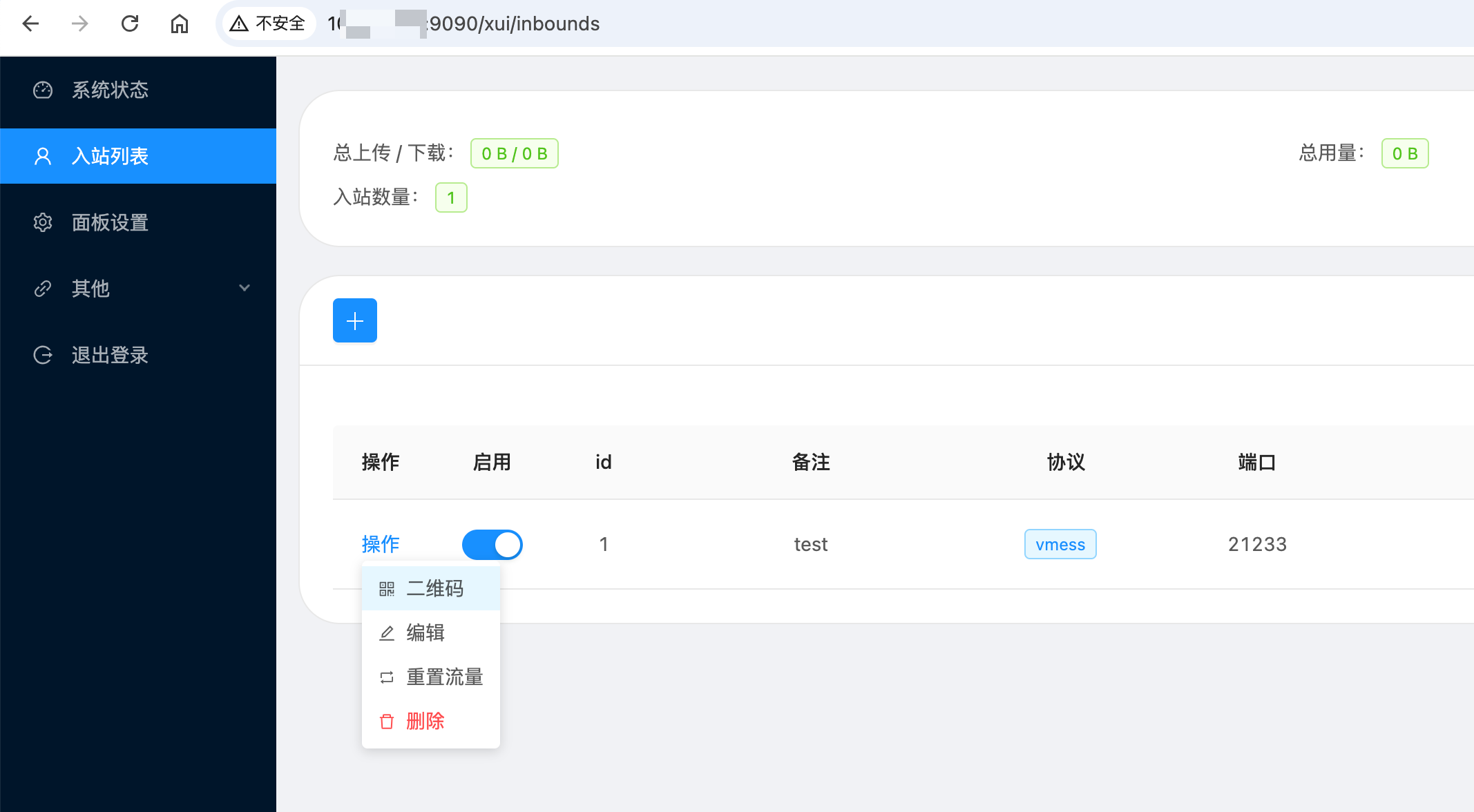
点击操作,二维码。可得到包含配置信息的二维码,方便手机等设备直接扫码添加。
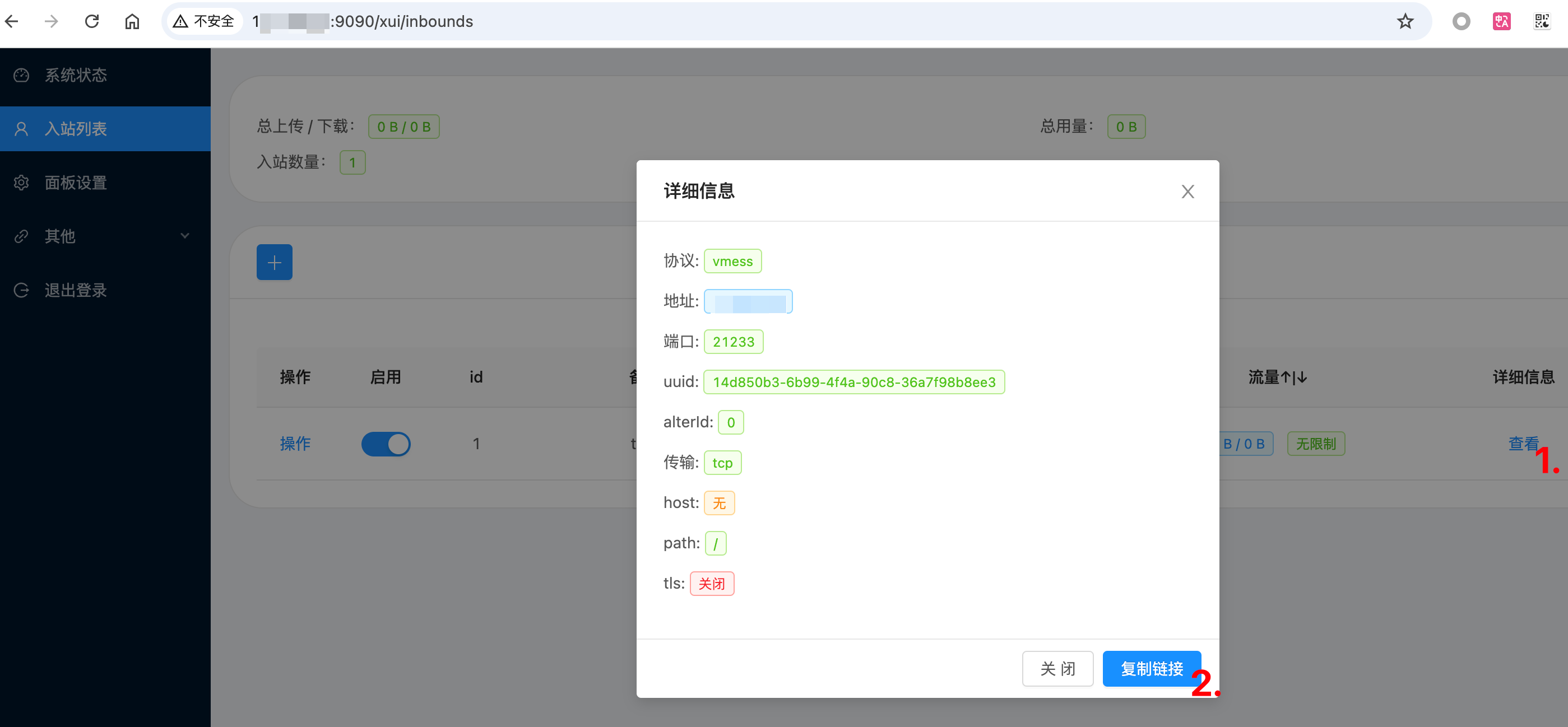
或点击查看,再点击复制链接。可直接得到配置信息。
四、客户端连接(以 Windows 为例)
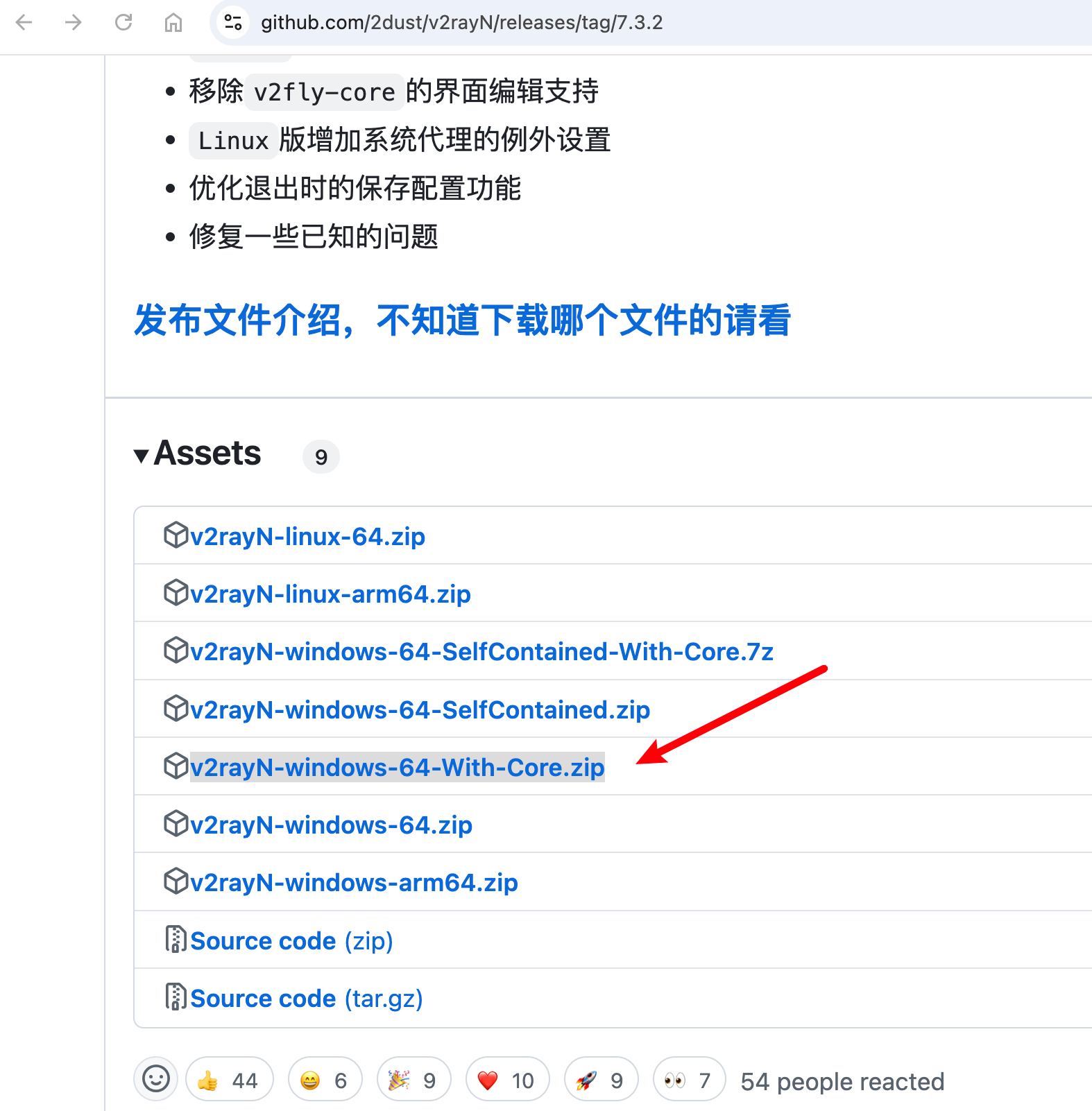
https://github.com/2dust/v2rayN/releases/download/7.3.2/v2rayN-windows-64-With-Core.zip
1. 下载安装客户端文件
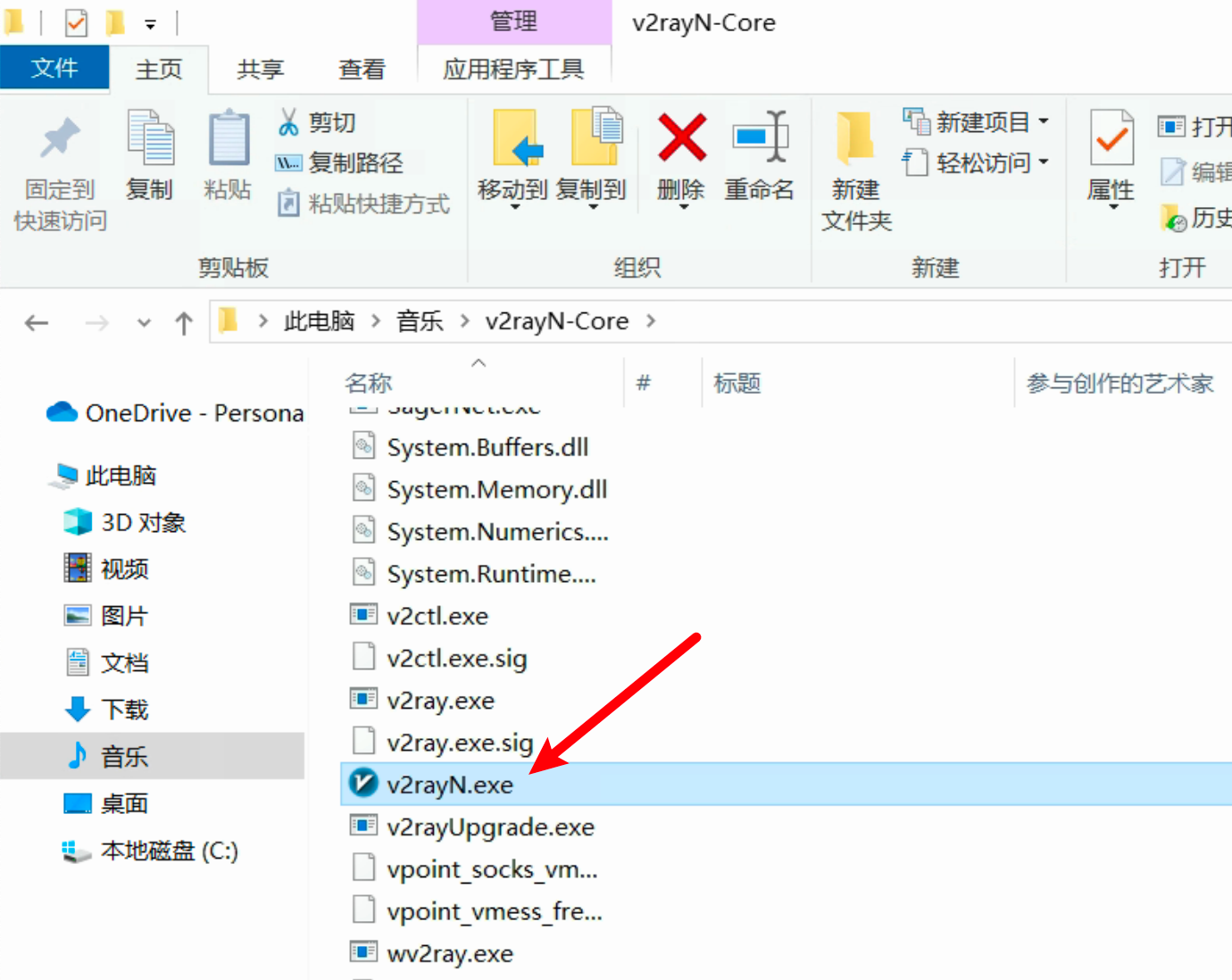
2. 在 Windows 中解压得到 v2rayN.exe 二进制文件
3. 打开,并添加节点信息
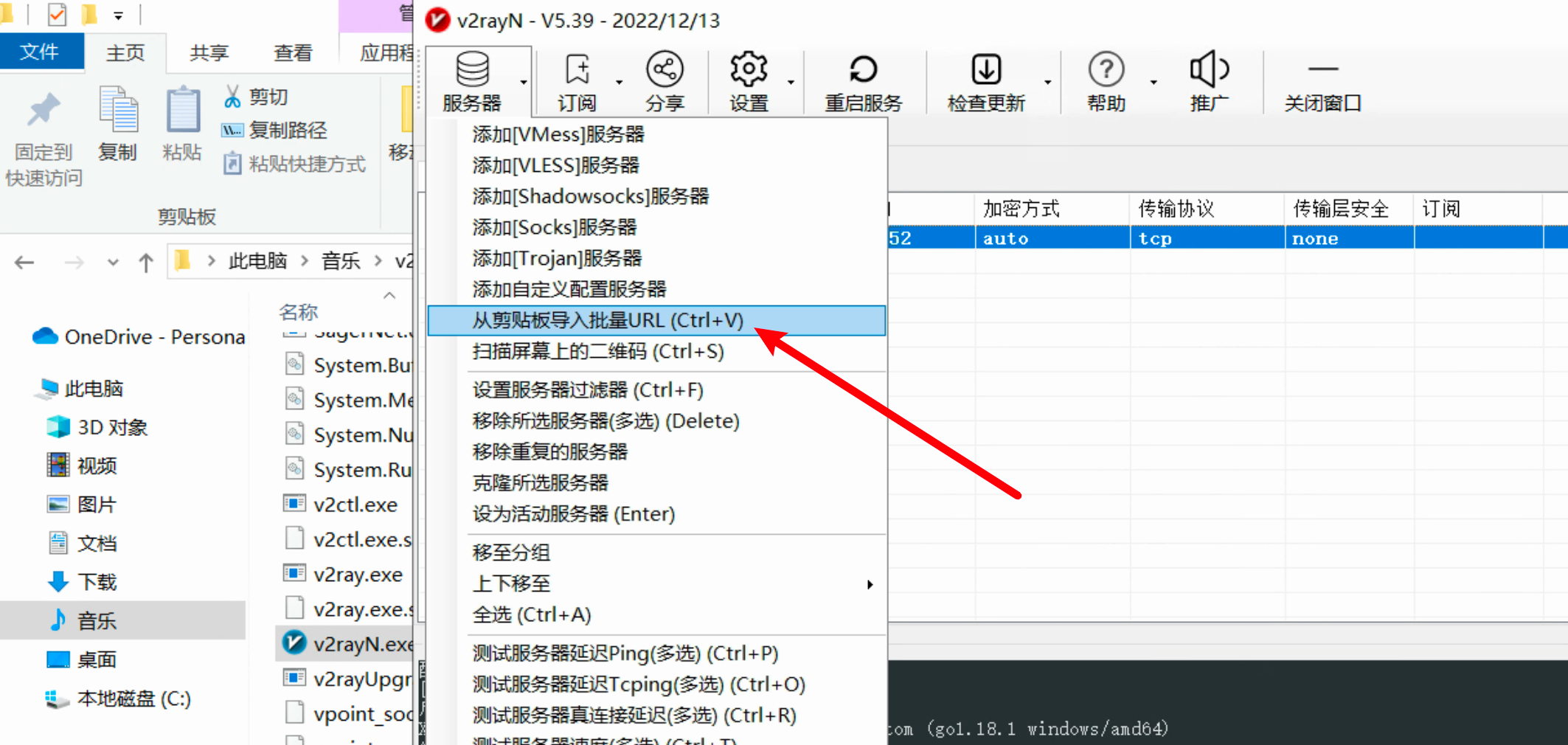
4. 更改其作为 PAC 模式运行
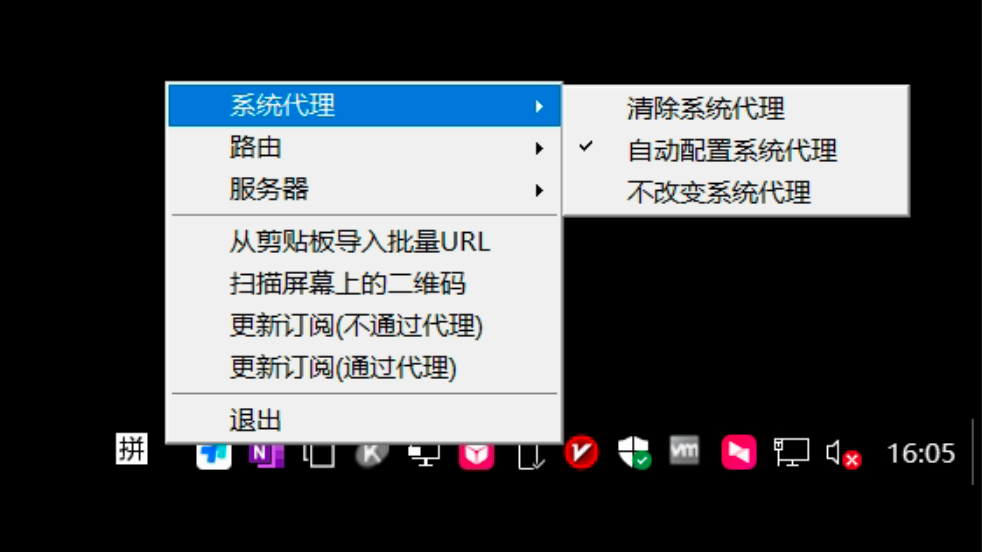
五、浏览器访问(以 Chrome 为例)
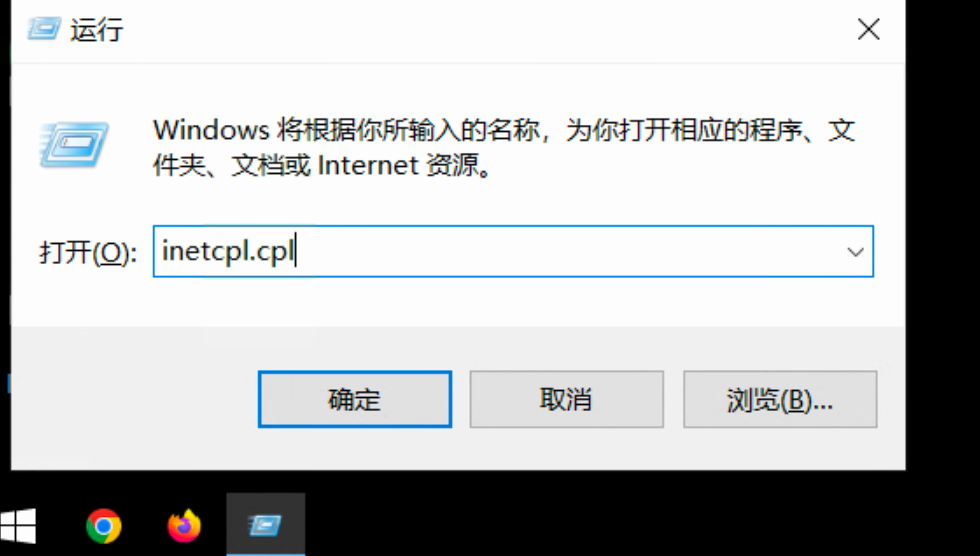
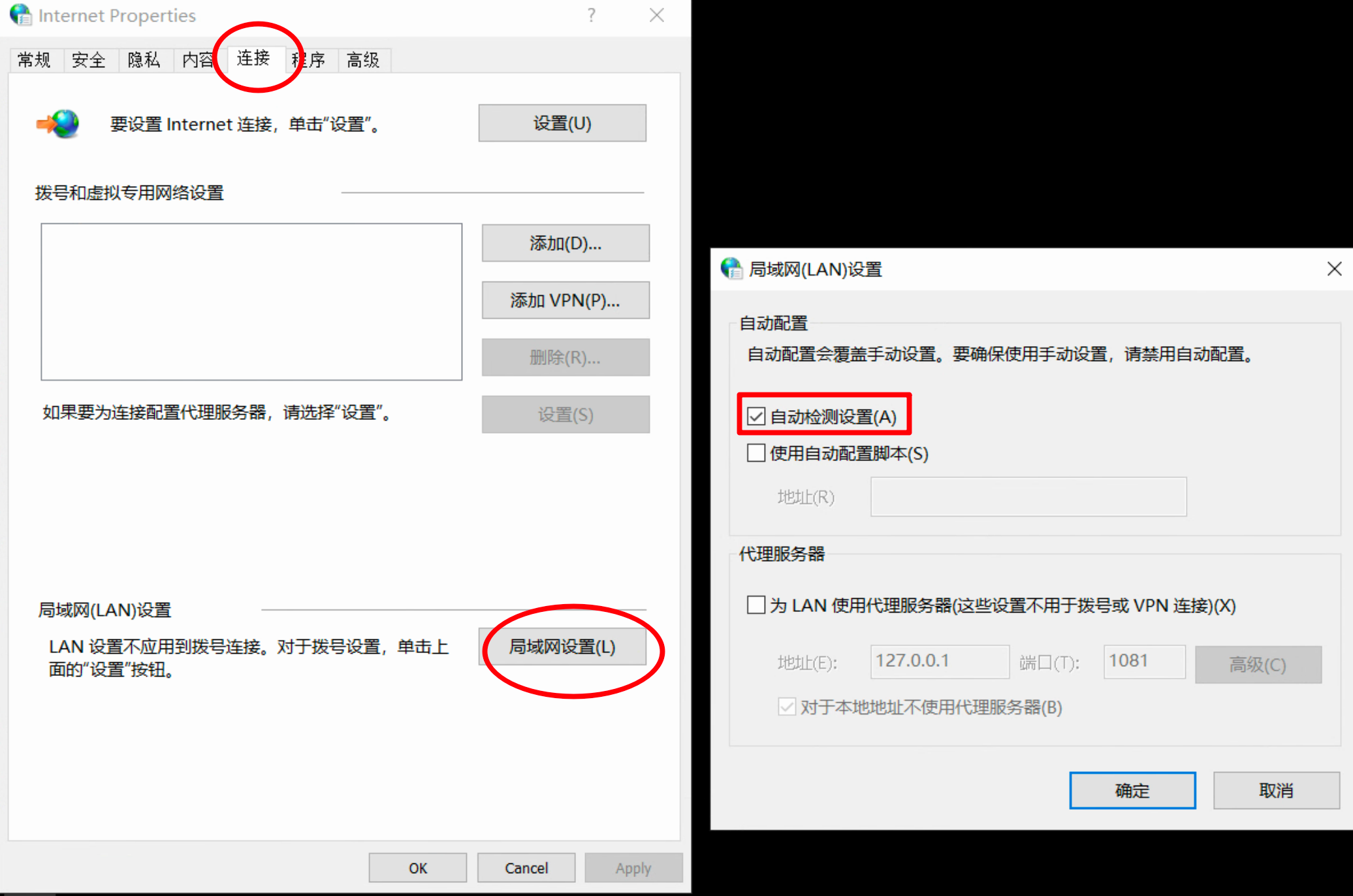
1. 配置 Windows 使用 PAC 模式
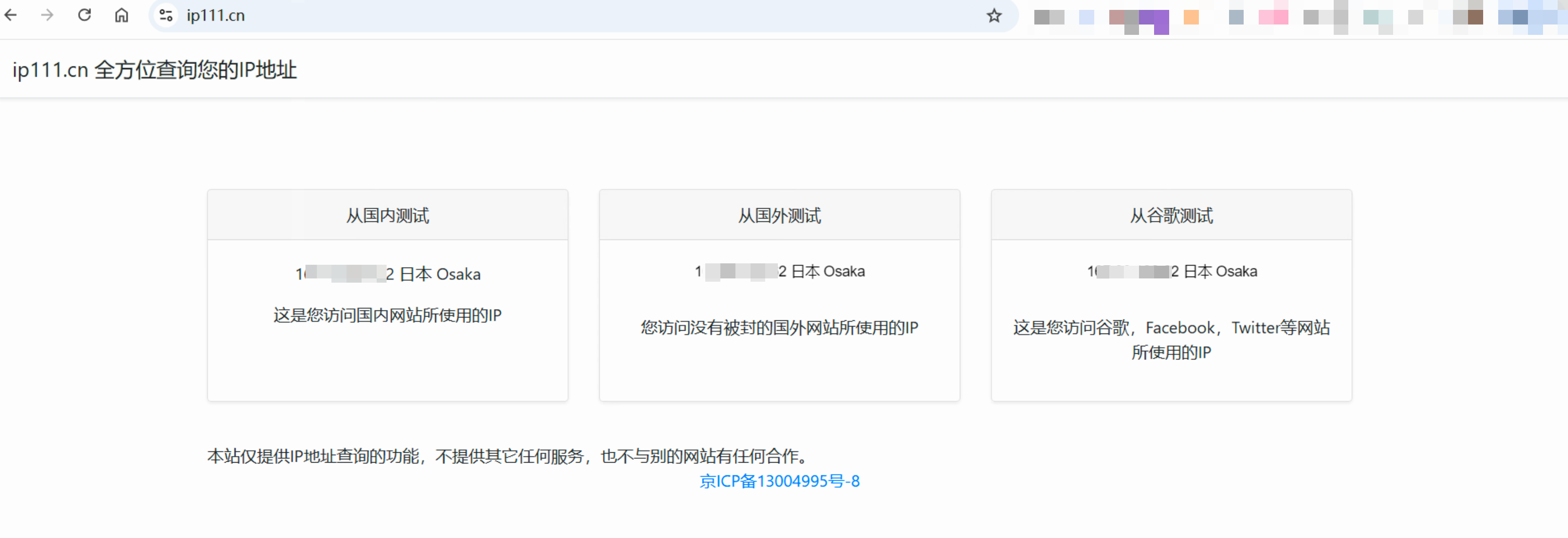
六、测试 & 验证